Can’t add a filter to Google Analytics?

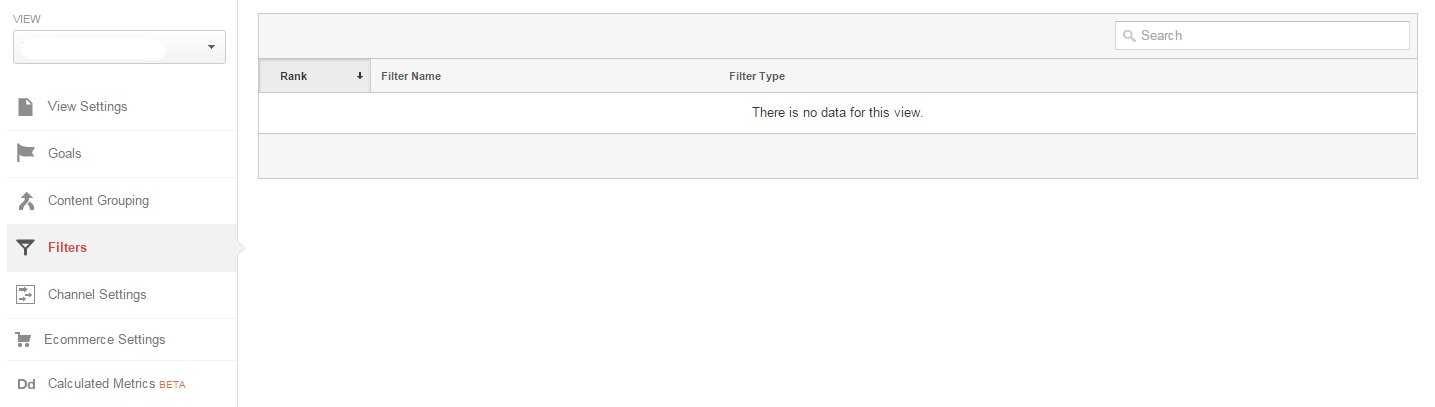
It happens often – you’re given access to a GA account and want to create a new filter. You go to Admin – View – Filters, but there’s no red Add Filter button, just a grey area:
No filter option in GA

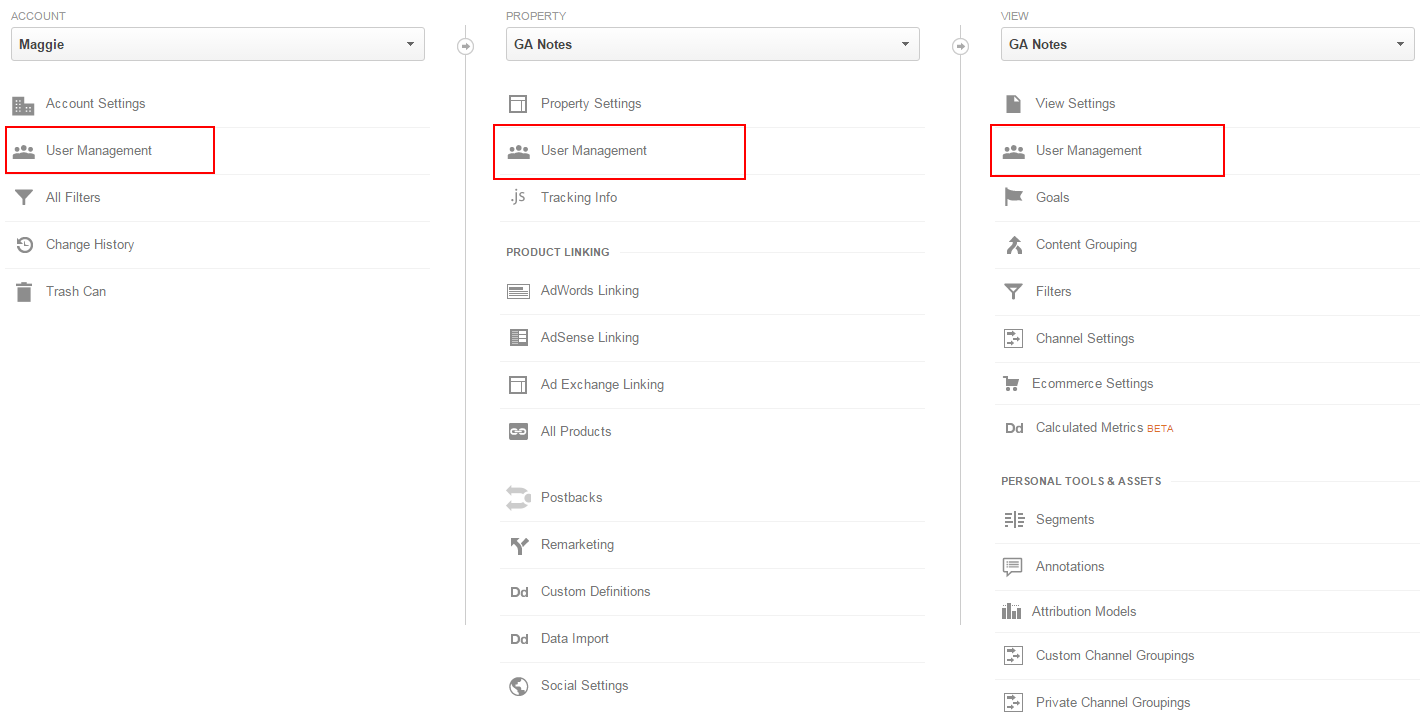
The reason for this is that user access can be given on different levels (Account, Property, View) but you can create filters only with access on Account level (the highest possible).

Here are the available User Management options on all 3 levels:

User management in GA

Only the first one can give you the ability to create new filters.

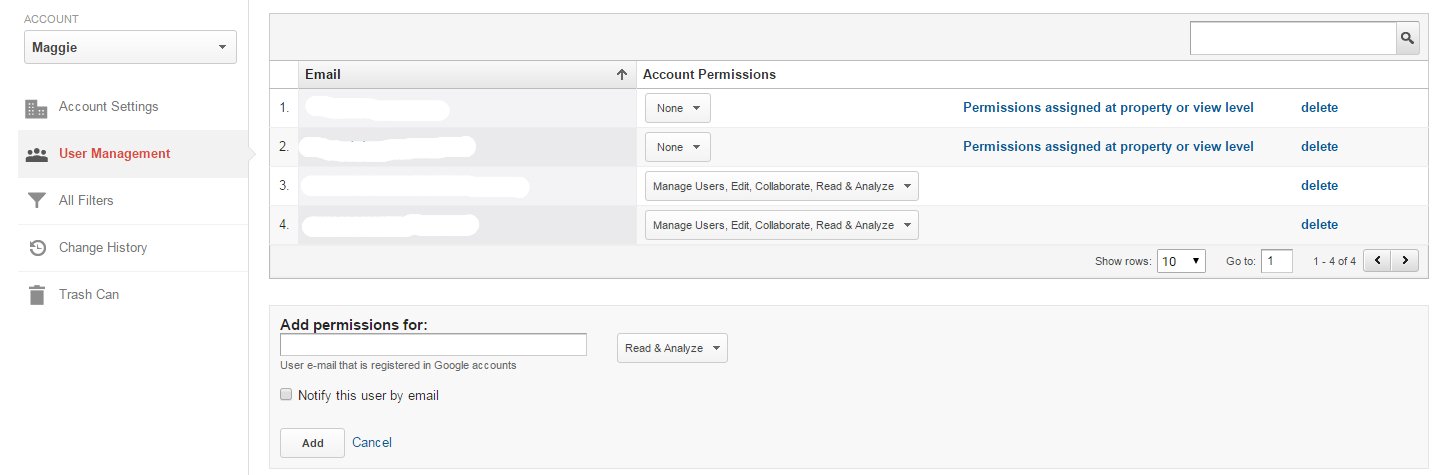
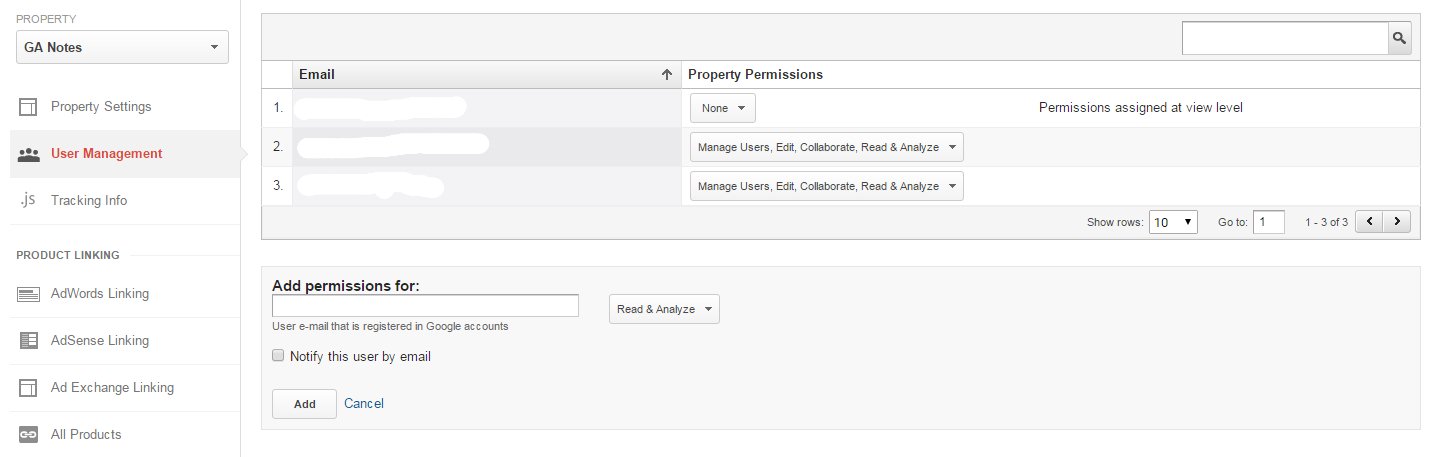
The inner settings also differ a little.

Account level:

Account users

Property level:

Property users

View level:

View users

In order to avoid going back and forth with the correct type of access, if you need to create filters, just request at the very beginning that you have Edit access on Account level.

P.S. Got a Google Analytics question? Send it to me and I’ll try to answer it on the blog.

5 Google Analytics posts you don’t want to miss in October

Here’s again the last post of the month saved for the top 5 interesting Google Analytics related resources I found on other sites. Here are the five for October – you may want to bookmark those as they can be very useful:

Ad Blockers & Analytics: What Webmasters Should Know And Do

As Apple announced they would allow third-party development of “content blocking” apps in iOS 9, Crystal became one of the most downloaded paid apps from the App Store in just a few days. This article shows how an ad blocker works and offers a workaround to ensure you can deliver most web page content and retrieve analytics data.

Are Your Analytics Telling the Right Story?

Thought-provoking blog post at Moz about how to find stories to tell in your analytics data. You’ll find some suggestions, helpful resources and 3 true stories.

25 Calculated Metrics for Google Analytics

Google Analytics released a long requested feature – Calculated metrics, derived metrics from standard and/or custom metrics. You can make any combination of standard metrics with or without custom metrics using standard arithmetic operators like multiplication, division, addition and subtraction to build calculated metrics. + 25 examples

21 Item Google Analytics Checklist When Changing Your Domain

A helpful checklist from E-Nor to help you transition to a new domain. It focuses on some key areas of your analytics setup that you should review before and after your transition (including a few additional suggestions to maintain SEO best practices).

Tracking Form Submissions in Iframes – Google Analytics & Iframes, Pt 1

This is part I of blog posts series about common issues and solutions when Google Analytics and iframes should work together. It covers the most common issue – tracking simple, one-off things like events or form submissions within iframes.

The Best Google Analytics Tools & Addons

Another helpful list of GA tools and addons this time from Brian Clifton. The table booster, annotations manager and confidence checker seem very interesting!

P.S. Got a Google Analytics question? Send it to me and I’ll try to answer it on the blog.

5 Google Analytics posts you don’t want to miss in September

Here’s again the last post of the month saved for the top 5 interesting Google Analytics related resources I found on other sites. Here are the five for September – you may want to bookmark those as they can be very useful:

Track Form Engagement With Google Tag Manager

Simo Ahava updates his must-read post on form tracking to be compliant for version 2 of GTM. Bookmark this for a quick reference how to capture field value, selected radio button, checkbox or drop-down list item, capture multiple values, track form abandonment and how much time a user spends in each field.

Maximize Your Google Analytics with These Helpful Add-Ons

Here’s a good summary of different add-ons (most of them free) that help to make easier to digest GA data and get the most out of it. Some of them are Google Sheets Add-on, Debugger for Google Analytics, Annotations Manager, Analytics Edge Add-In and more.

Great Storytelling With Data: Visualize Simply And Focus Obsessively

This giant post by Avinash goes into the proper way to visualize data in presentations, using before and after sample slides grouped in 10 lessons.

Creating Adwords Remarketing Lists with GA Custom Dimensions

Very interesting guest post at Krista Seiden’s blog about using custom dimensions to build remarketing lists for AdWords. It also contains a great way to connect Facebook targeting (and all psychographic segmenting available there) with GA and your remarketing audiences!

Call Tracking: It’s All About Increasing Profits

Here you’ll learn what’s call tracking and how it works. Most probably the number of phone calls to your business is accelerating, so if you don’t have one in place, you should definitely consider adding call tracking.

P.S. Got a Google Analytics question? Send it to me and I’ll try to answer it on the blog.

Hotjar recordings – How to get great insights of what matters

I’ve been using Hotjar as my go-to tool for visitors recordings for over 6 months now and would like to share some thoughts on what’s best about it. I like it because the quality of the recordings is outstanding, much better than Clicktale when I used it

Some general details:

  • Pricing – I started with the free trial, run the free 300 recordings on a specific page defined as trigger in GTM, and after seeing the quality of recordings and the insights you get from watching them, paying the 30 EUR / month was a no-brainer for my employer.
  • Installation – it’s very easy to add the Hotjar tracking code to your WordPress site either by using a plugin or directly by adding it to your header.php file, detailed instructions are available. My prefer way would be using Google Tag Manager of course. Just add it as custom HTML tag with a trigger to Fire On all pages or specific URL if you’re still on the free version.

The most important thing about Hotjar is to set aside the time to actually go through the recordings you’re collecting, and take notes while you’re watching them.

It doesn’t make sense to get thousands of recordings if there’s noone to watch them and analyze them.

The best way to start is to identify a page you want to record. Usually that’s easy – check your conversion funnel to see where the biggest drop off point is: landing page, step 1 of checkout, last step of checkout, or something else.

Set Hotjar to record this page (you can specify a page in Pro, or if you’re still with the free version, just add the Hotjar tracking code to this page only using GTM) and make 3 batches of 100 recordings. 300 recordings should give you a good idea what’s going on.

Start watching the videos with a spreadsheet ready. Record the video number in the first column, the result in the second column (bounce, abandon, success, clicked away), add some more descriptive notes in the third column, and if the user encountered any specific errors in the forth column, like this:

hotjar-analysis

After you go through all videos you can summarize the results, and drill-down into specific reasons visitors are abandoning the funnel or errors they encountered that can be prevented by better usability, special tooltips explaining how a particular field should be filled in, or adding live chat support to help visitors.

If you haven’t used Hotjar yet, sign up for the free trial and get some qualitative data!

P.S. Got a Google Analytics question? Send it to me and I’ll try to answer it on the blog.
How to troubleshoot click tracking with Google Tag Manager

It’s easy to make a mistake when you setup your click tracking in Google Tag Manager or you just may not know how to define the click triggers.

Here’s a way to understand how GTM sees your click elements and end up with a properly working click tracking.

Let’s say we have a button that we want to add click tracking to.

First, go to Variables page in GTM and make sure all Click variables are enabled: Click Element, Click Classes, Click ID, Click Target, Click URL, Click Text.

GTM-clicks-variables

Next we want to create a simple click event for all clicks.

1. Go to Tags – New, give it a name, and select Google Analytics and Universal Analytics as product and tag type.
2. Enter your GA tracking ID or use a variable if you have one. Select Event from the track type drop-down and give it some generic category and action values.
3. Now for your trigger in the Fire On section, select Click, give the trigger a name and select All Elements for All clicks.

GTM-click-trigger

4. Save your tag.

GTM-generic-click

Enter Debug mode and refresh the page of your website which has the button you want to track clicks on. Let’s say I want to track the clicks on the comments balloon icon on the blog. Click the button while pressing Ctrl key so it opens a new tab, and let’s see what the Debug console looks like:

GTM-debug-mode

So we have our click tag firing. Now click gtm.click in the Summary pane on the left and select Variables at the top. Here we can see what data layer variables GTM sees for this element so we can use them to improve our trigger to track clicks on this button only, and not all clicks:

GTM-debug-variables

You can use either the click classes or click ID if these are available and unique, or for an element like click URL we may select condition like contains “respond”.

That’s all! A quick way to properly set your click tracking.

P.S. Got a Google Analytics question? Send it to me and I’ll try to answer it on the blog.